

How to Set up an IRS Account
This step-by-step guide will help you create an IRS account.
Benefits of Creating an IRS Account
Creating an IRS account online offers several advantages:
- Securely make payments directly to the IRS.
- Access your payment history for up to five years, including pending or scheduled payments.
- Benefit of enhanced security when making payments.
- Viewing your current tax balance and a detailed breakdown by tax year.
- Authorize your accountant to view your payment records and other relevant tax information.
Important Things to Know Before You Start
- You will need a valid photo identification available during the account setup process.
- The process will be easiest to complete on a computer, but you will need your phone for certain verification steps.
- If you are married and filed a joint return last year, the account should be created by the person listed first on your Form 1040 (the “taxpayer” line). If the account is created by the by the person listed second on the Form 1040 (the “spouse” line), the IRS may have difficulty applying payments made under that account to your return.
STEP 1
Click the link below to get started
https://www.irs.gov/payments/online-account-for-individuals
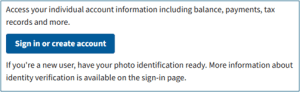
Read through the information on the page if you want to know more about what an IRS account can do, then click the “Sign in or create an account” button.
STEP 2
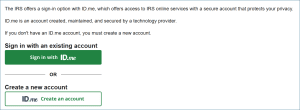
Select the “ID.me Create an account” button.
STEP 3
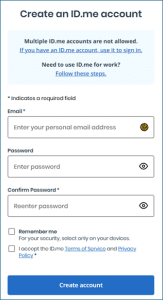
After completing all required fields, accept the term and conditions and click “Create Account” at the bottom.
STEP 4
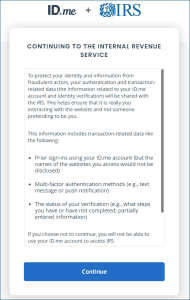
Your screen should now look like this. Click continue.
STEP 5
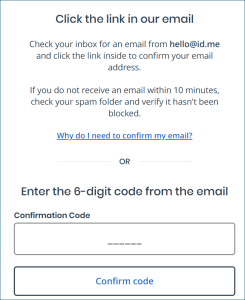
You will be asked to confirm your email address. Click on the link that was sent to your email or enter the 6-digit confirmation code.
STEP 6
You will have to set up a multi-factor authentication (MFA) next, which will add additional security to your account. Choose whichever option best suits your needs.
The steps below are based on using text message as the MFA.
STEP 7
Now verify the multi-factor authentication but inputting the code sent to your phone.
STEP 8
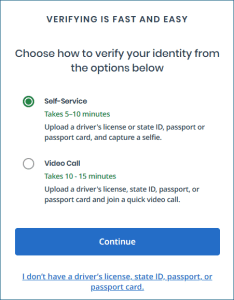
Choose how to verify your identity.
The steps below are based on choosing self-service.
STEP 9
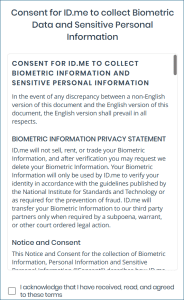
Review the terms, click that you have acknowledged them, and click continue.
STEP 10
Now, verify your identity. You will need to have your ID near you for this step. Enter your phone number and click continue.

STEP 11
This step will be completed on your cellular device. Click on the link that was texted to you, then follow the prompted instructions. You will need to upload pictures of the front and back of your ID, and then it will take a short video of your to match your ID to your face. One this is completed, go back to the browser tab that you were on before this step.
STEP 12
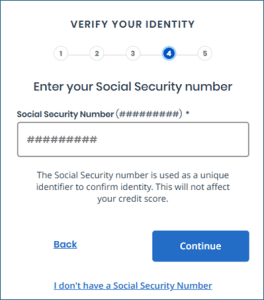
Enter your social security number and click continue.
STEP 13
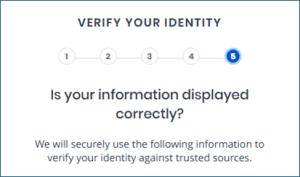
Review the information displayed carefully and click yes if everything is correct. If anything is incorrect, click no, correct the misinformation, review your information again, and click yes.
STEP 14
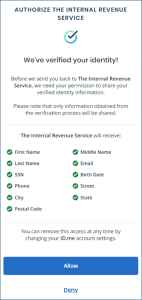
Authorize ID.me to share your verified information with the IRS.
Congratulations! You have just successfully set up your account with the IRS.
To go back to the log in page and access your account, click the link below and sign in.
https://www.irs.gov/payments/online-account-for-individuals