
How to Pay Individual Income Tax Due Online
This step-by-step guide will help walk you through paying the income tax that you owe with your return to the IRS.
How to Pay
You have two payment options:
- Direct Pay – Pay directly from your bank account without creating an IRS account. Follow the steps below to use Direct Pay.
- IRS Account – Setting up an IRS account takes a little time but offers long-term benefits, such as viewing your payment history anytime and adding your accountant to your account. If you’d like to create an IRS account, click the link below:
https://www.vancouvercpa.com/how-to-set-up-an-irs-account/
If you prefer not to create an account, continue below for Direct Pay instructions.
Common Mistakes to Avoid When Paying Online
Before you begin, review these common mistakes to ensure your payment is processed correctly:
- Using current status for identity verification
- Verify your identity by entering information that matches your most recently filed tax return. For example, if you got married this year but filed as “single” last year, select “single” for your filing status.
- Using the wrong spouse’s information
- If you are married and filed a joint return last year, the payment should be made by the person listed first on your Form 1040 (the “taxpayer” line). If the payment is made by the person listed second on the Form 1040 (the “spouse” line), the IRS may have difficulty applying the payment to your return.
- Applying payment to the wrong year
- Double check you are applying your payment towards the correct tax year.
Paying Using Direct Pay
STEP 1
Click the link below and under “Pay personal taxes” click the “Make a payment” button. This will take you to the IRS’s Direct Pay website.
https://www.irs.gov/payments/pay-personal-taxes-from-your-bank-account

STEP 2
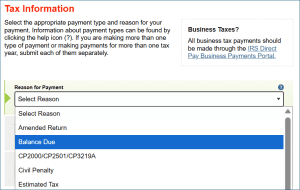
Select “Balance Due” under Reason for Payment.
STEP 3
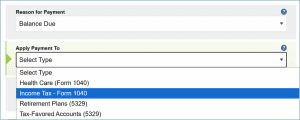
Select “Income Tax – Form 1040” under Apply Payment To.
STEP 4
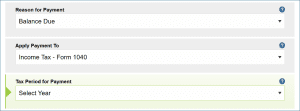
Select the relevant year under Tax Period for Payment and click Continue.
STEP 5
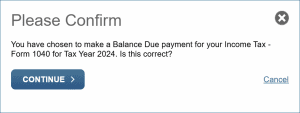
Review the information to confirm that it is correct then click Continue.
STEP 6
Next, fill in the fields to verify your identity and accept the Privacy Act and Paperwork Reduction Act.
STEP 7
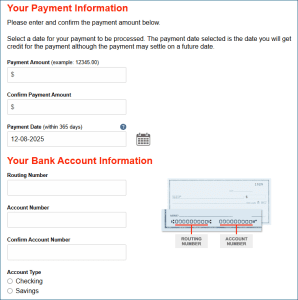
Enter your payment amount and your bank information.
STEP 8
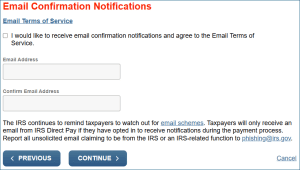
Mark the box that indicates that you would like to receive email confirmation notifications and enter your email address. Click to continue.
STEP 9
Review your information, agree to the terms and conditions, and submit your payment. Check your email to ensure you receive confirmation of the payment. If you did not receive an email save the confirmation number.
